1 min read

Configure Paubox spam filtering with Exchange Admin Center

Two professionals in conversation at a modern office space

Using the Microsoft 365 Exchange Admin Center, it’s possible to configure Spam Email Filtering for all users in an Microsoft 365 environment. This would apply to customers using Microsoft 365 for their email platform and Paubox as their HIPAA compliant email solution. Here’s how to do it.

See Also: How Does Paubox’s Spam Filtering Feature Work?


Create a Microsoft 365 Transport Rule to Filter Spam Emails Based on Paubox Header Information

  1. Login to the Microsoft 365 Exchange Admin Center using Admin-level credentials.
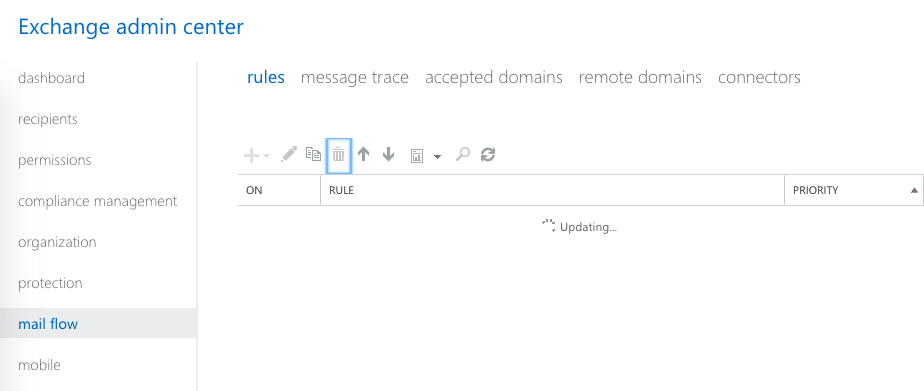
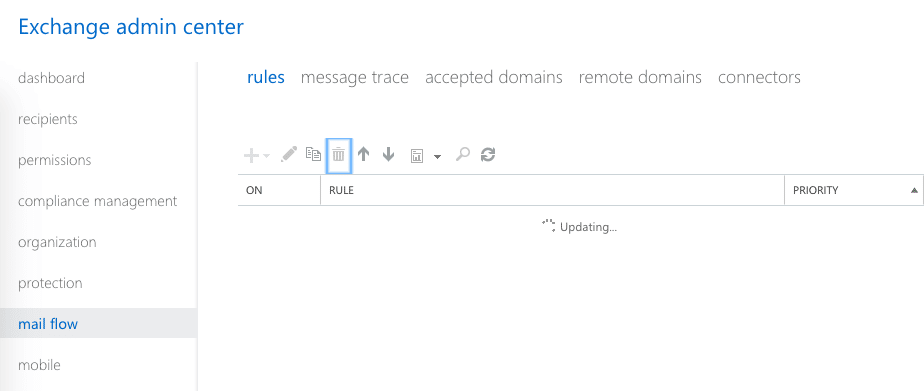
  2. Click Mail Flow then Rules
    Exchange Admin Center Rules tab with mail flow configuration interface
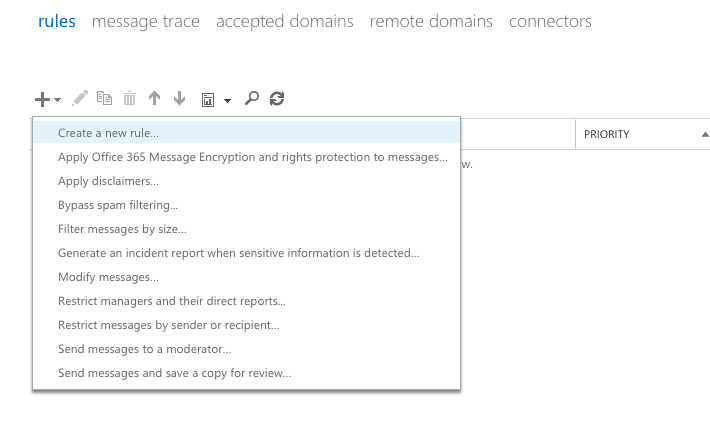
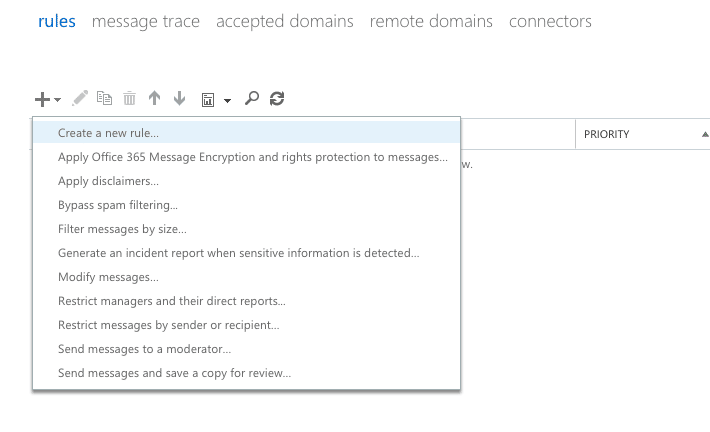
  3. Click + and then select Create a new rule... Exchange Admin Center rules creation dropdown menu with options for email filtering and message handling
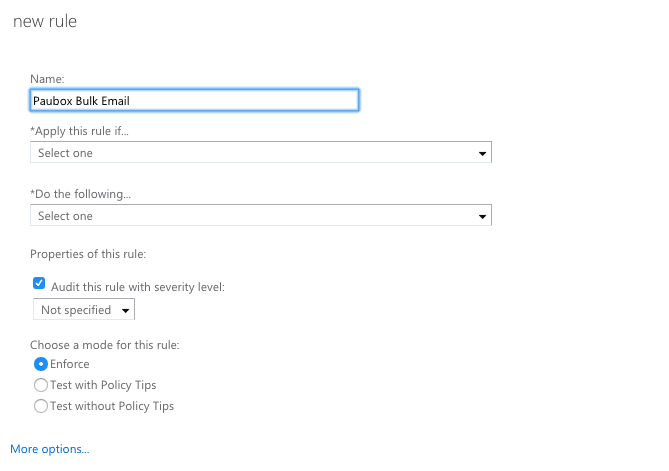
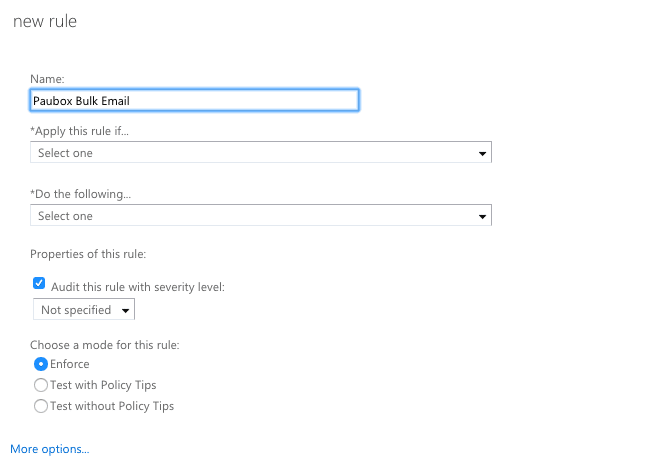
  4. In the proceeding pop-up window, name the rule Paubox Bulk Email then click More options... Exchange Admin Center form for creating a new mail flow rule named 'Paubox Bulk Email'
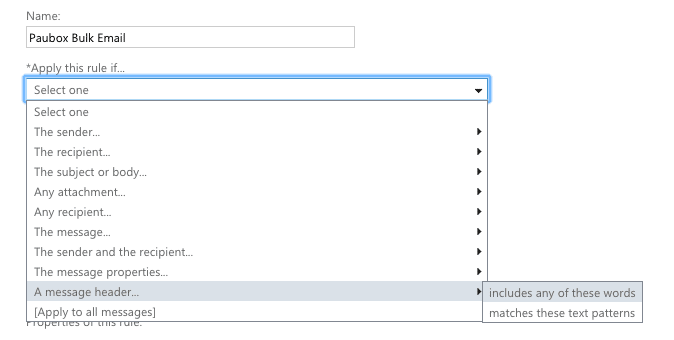
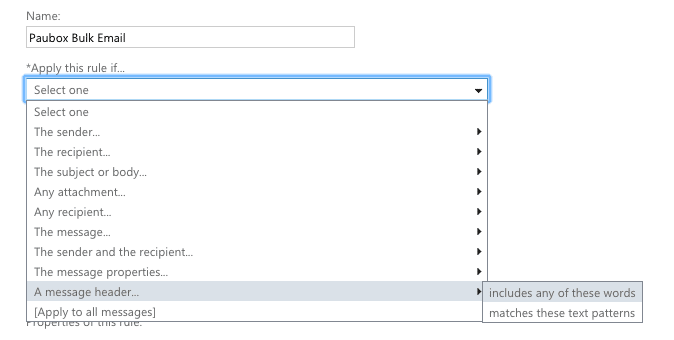
  5. Under *Apply this rule if..., select A message header... > includes any of these words. Exchange Admin Center rule configuration screen with dropdown menu for selecting message header conditions
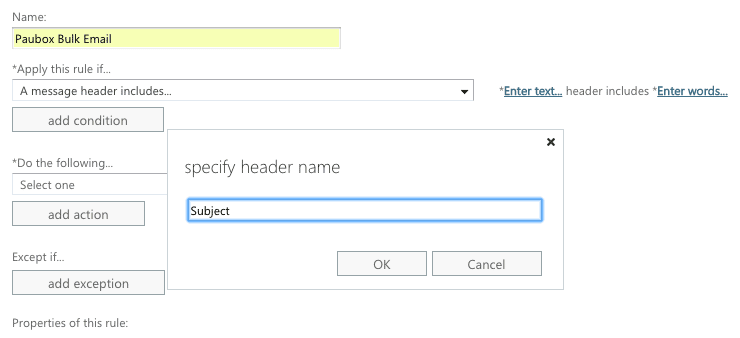
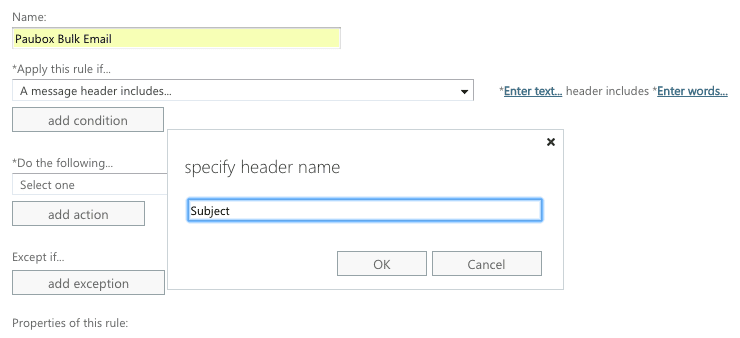
  6. Next click Enter text..., type Subject, then click OK Exchange Admin Center dialog for specifying a header name with Subject field highlighted
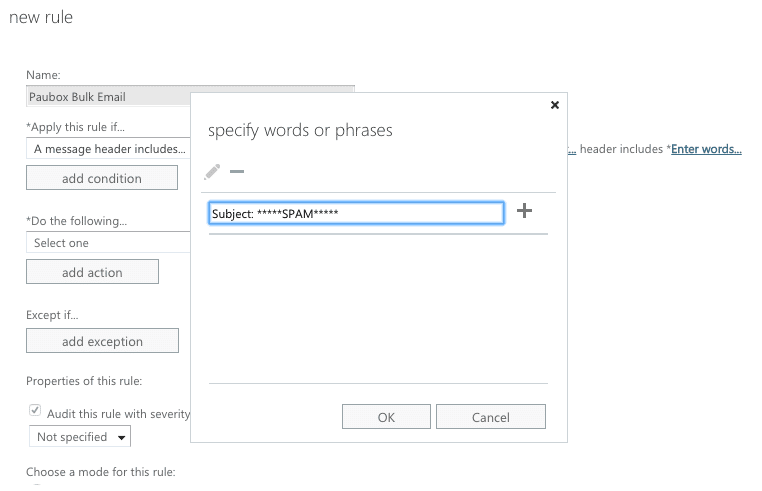
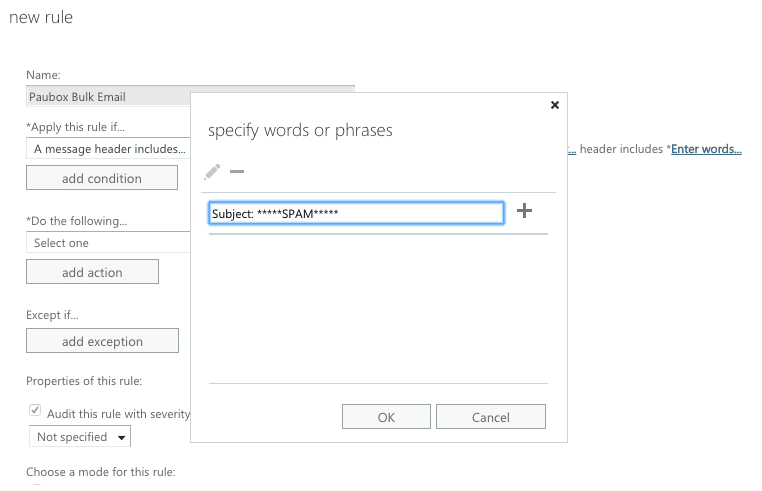
  7. Now click Enter words..., type Subject: *****SPAM***** and click +. You must click the + button for the entry to take effect. Exchange Admin Center rule dialog showing spam filtering configuration with Subject field and SCL settings
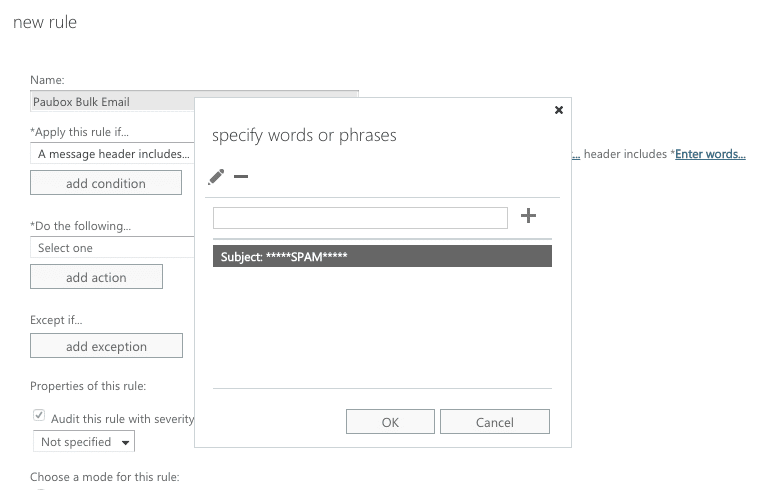
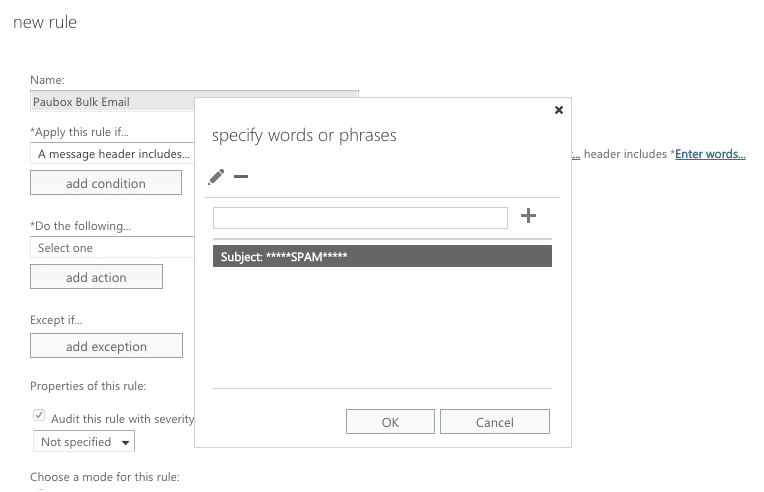
  8. You should see a screen similar to the one below. Next click OK. Exchange Admin Center dialog for creating a new spam filtering rule with subject line conditions
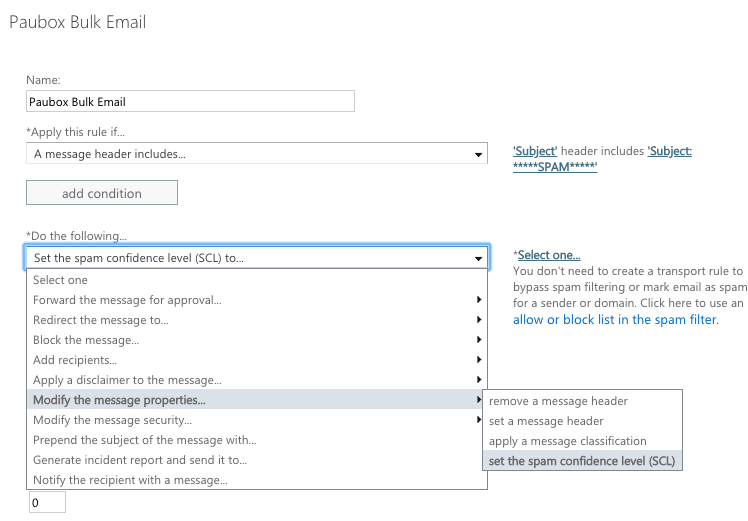
  9. Under Do the following... select Modify the message properties.. > set the spam confidence level (SCL)
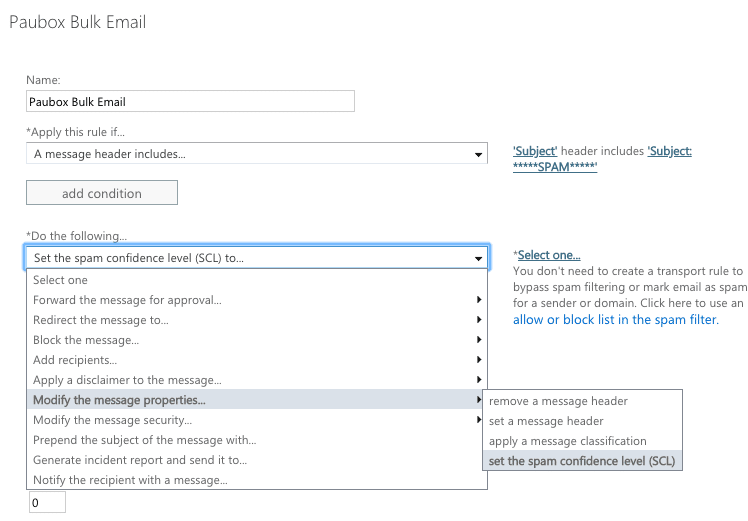
    Exchange Admin Center spam filtering rule configuration screen with dropdown menus and action options
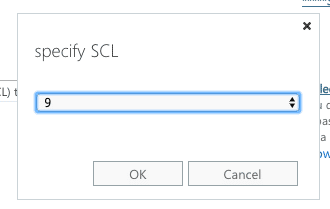
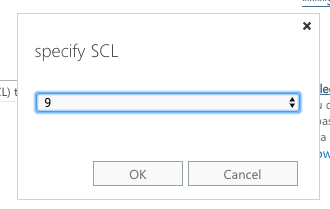
  10. On the next screen, set the Specify SCL drop-down box to 9 and click OK. Dialog box showing Specify SCL dropdown set to 9 with OK and Cancel buttons
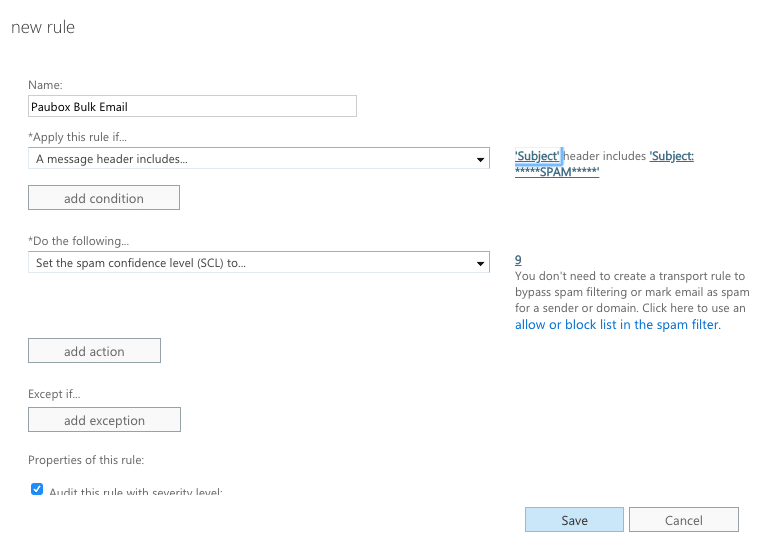
  11. Your screen should look similar to the one below. Next click Save. Exchange Admin Center screen with fields for creating a spam filtering rule, including Name, Apply this rule if, Do the following, and Properties sections.
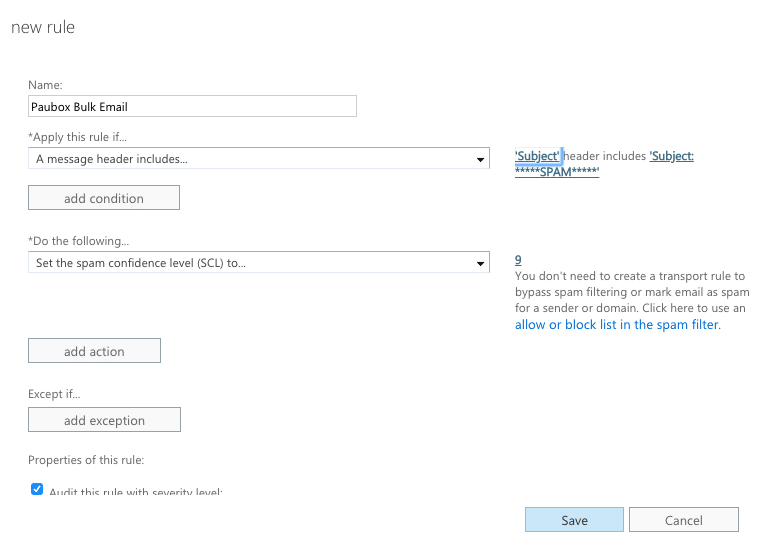
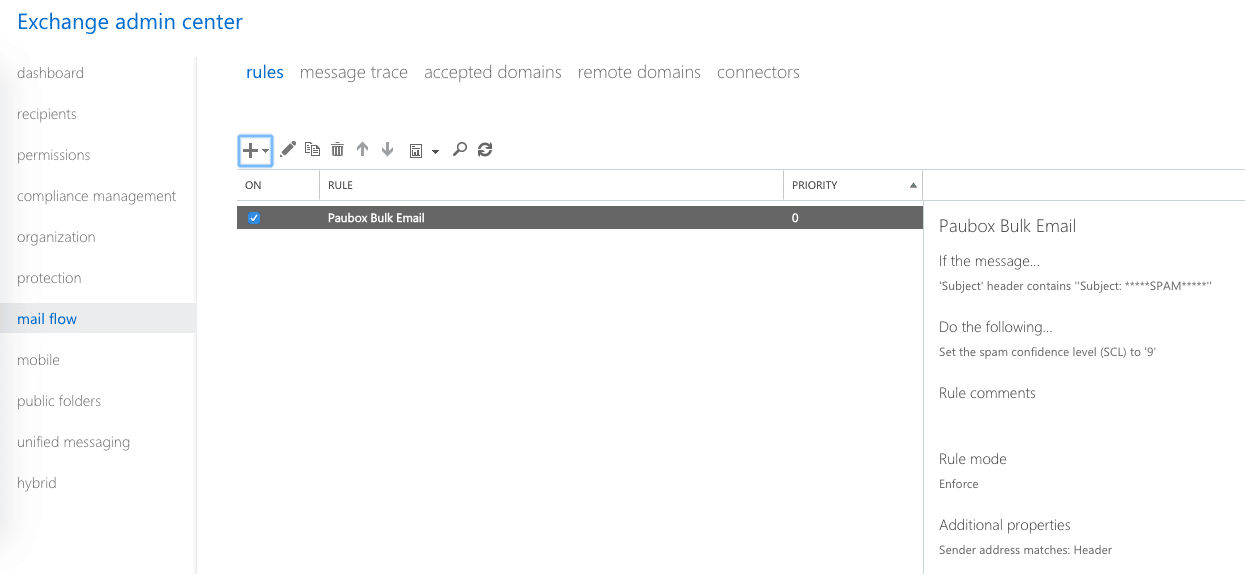
Congratulations! You have successfully used the Microsoft 365 Exchange Admin Panel to send emails identified as spam by Paubox directly to your end users' respective Junk Mail folders. Exchange Admin Center rules panel with Paubox Bulk Email spam rule configuration
 
Try Paubox Email Suite for FREE today.
 
Two people collaborating at a desk with laptops and monitors in an office

Using the Exchange Admin Center to split encrypted senders

Using the Microsoft 365 Exchange Admin Center, it's possible to configure a subset of users in a domain to use Paubox email encryption for outbound...

Read More
Image of someone with Microsoft 365 on their phone.

How to set up HIPAA compliant email with Microsoft 365

According to Microsoft, “Microsoft 365 Commercial products and cloud services revenue increased $10.8 billion or 14%” in the 2025 fiscal year,...

Read More
Windows logo and window frame on sandy background under blue sky

Is Microsoft 365 HIPAA compliant? (2025 update)

Microsoft 365 is a cloud-based productivity suite that provides tools for collaboration, communication, and document management.

Read More

Subscribe to Paubox Weekly

Every Friday we bring you the most important news from Paubox. Our aim is to make you smarter, faster.